Layers
Background and Foreground / Overlay
You can display any data content inside your video using the Eyeson layer service. There are two ways to add an image:
- Generate and send the image file directly, or
- provide a public URL to the image.
Each image is placed on one of two layers:
- Background (
z-index=-1): has no transparency, soJPEGimages work fine here. - Foreground / overlay (
z-index=1): use aPNGorWebPimage with an alpha channel (transparency), or anSVGfile, so the video stays visible behind the transparent areas. Don't useJPEGfiles, as they do not support transparency.
Match the image size to the room resolution listed below. Overlay images larger than this resolution are rejected.
| Room Mode | Resolution (pixels) | Description |
|---|---|---|
| Default | 1280x960 | 960p Standard |
| Widescreen | 1280x720 | HD Widescreen |
When using layers, you may want to disable SFU mode in the default room configuration, as it will transport individual streams for single and two participants without showing layer media.
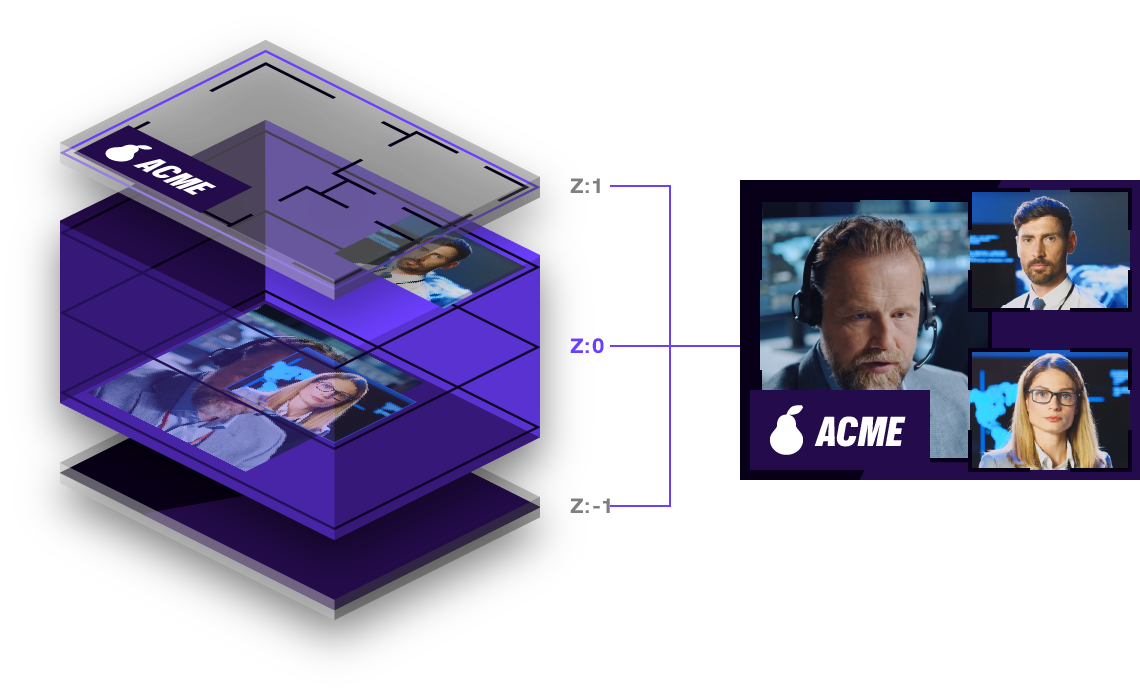
Add Content to Layer
Supported image types are: PNG, WebP, SVG, and JPEG.
Background layer has no transparency, foreground layer / overlay can be transparent.
The positioning of images smaller than the call resolution of either 1280x960 pixels (960p in default) or 1280x720 pixels (HD in widescreen mode) follows the following rule:
- Background: The image will be centered and scaled to fit if too large.
- Foreground / Overlay: The image will be positioned in the left upper corner and not be scaled.
Overlay images larger than the resolution will throw an Error 400 BAD REQUEST.
Transparent parts of an image in the background layer are rendered white.
POST /rooms/`ACCESS_KEY`/layers
RESPONSES 201 CREATED, 400 BAD REQUEST, 404 NOT FOUND, 410 GONE
RECOMMENDED file or url,  z-index
file
Type: File [binary] (optional)
File upload.
Example Req/Res: Overlay with local File
- curl
- node sdk
- go sdk
- php sdk
export ACCESS_KEY=...
curl -X POST \
  -F "file=@path/to/local/file.png" \
  -F "z-index=-1" \
  "https://api.eyeson.team/rooms/$ACCESS_KEY/layers"
import fs from 'node:fs';
import Eyeson from '@eyeson/node';

const eyeson = new Eyeson();
const user = await eyeson.getUser(accessKey);
const imageBuffer = await fs.promises.readFile('./file.png');
await user.sendLayer(imageBuffer, Eyeson.layerBackground);
import (
  "os"
  eyeson "github.com/eyeson-team/eyeson-go"
)
accessKey := "..."
userService, _ := eyeson.NewUserServiceFromAccessKey(accessKey)
buffer, _ := os.ReadFile("./file.png")
userService.SetLayerImage(buffer, eyeson.PNG, eyeson.Background, nil)
$accessKey = '...';
$eyeson = new Eyeson();
$layer = $eyeson->layer($accessKey);
$layer->sendImageFile('./file.png', Eyeson::$layerBackground);
No Response
Example
url
Type: URL (optional)
Public file URL.
Example Req/Res: Background Image with File URL
- curl
- node sdk
- go sdk
- php sdk
export ACCESS_KEY=...
curl -X POST \
  -d "url=https://docs.eyeson.com/img/examples/overlay_example.png" \
  -d "z-index=1" \
  "https://api.eyeson.team/rooms/$ACCESS_KEY/layers"
const eyeson = new Eyeson();
const user = await eyeson.getUser(accessKey);
await user.setLayer({
  url: 'https://docs.eyeson.com/img/examples/overlay_example.png',
  'z-index': Eyeson.layerForeground,
});
accessKey := "..."
userService, _ := eyeson.NewUserServiceFromAccessKey(accessKey)
userService.SetLayer("https://docs.eyeson.com/img/examples/overlay_example.png",
  eyeson.Foreground, nil)
$accessKey = '...';
$eyeson = new Eyeson();
$layer = $eyeson->layer($accessKey);
$layer->apply([
  'url' => 'https://docs.eyeson.com/img/examples/overlay_example.png',
  'z-index' => Eyeson::$layerForeground
]);
No Response
Examples
z-index
Type: STRING (optional)
Default: 1
Assigns images to a specific layer.
| Value | Description |
|---|---|
1 | Image is placed in the foreground |
-1 | Image is placed in the background |
If you don't append a z-index parameter to your request, it is assumed to be 1.
id
Type: STRING (optional)
Layer id for relation control in observer "podium_update" event.
Delete Layer Content
DELETE /rooms/`ACCESS_KEY`/layers/`LAYER_INDEX` # clear layer, layer_index: -1 or 1
  RESPONSES 200 OK, 404 NOT FOUND, 410 GONE
Example Req/Res: Delete Background Layer Content
- curl
- node sdk
- go sdk
- php sdk
export ACCESS_KEY=...
curl -X DELETE "https://api.eyeson.team/rooms/$ACCESS_KEY/layers/-1"
const eyeson = new Eyeson();
const user = await eyeson.getUser(accessKey);
await user.clearLayer(Eyeson.layerBackground);
accessKey := "..."
userService, _ := eyeson.NewUserServiceFromAccessKey(accessKey)
userService.ClearLayer(eyeson.Background)
$accessKey = '...';
$eyeson = new Eyeson();
$layer = $eyeson->layer($accessKey);
$layer->clear(Eyeson::$layerBackground);
No Response